Adding evidence
Evidence is the record that shows a student received an adjustment. Write it so another teacher can understand what changed for the student without asking you to explain it later.
Add evidence for one student
- Open the student record from your dashboard, search, a class group or a student group.
- Choose Add or Add evidence.
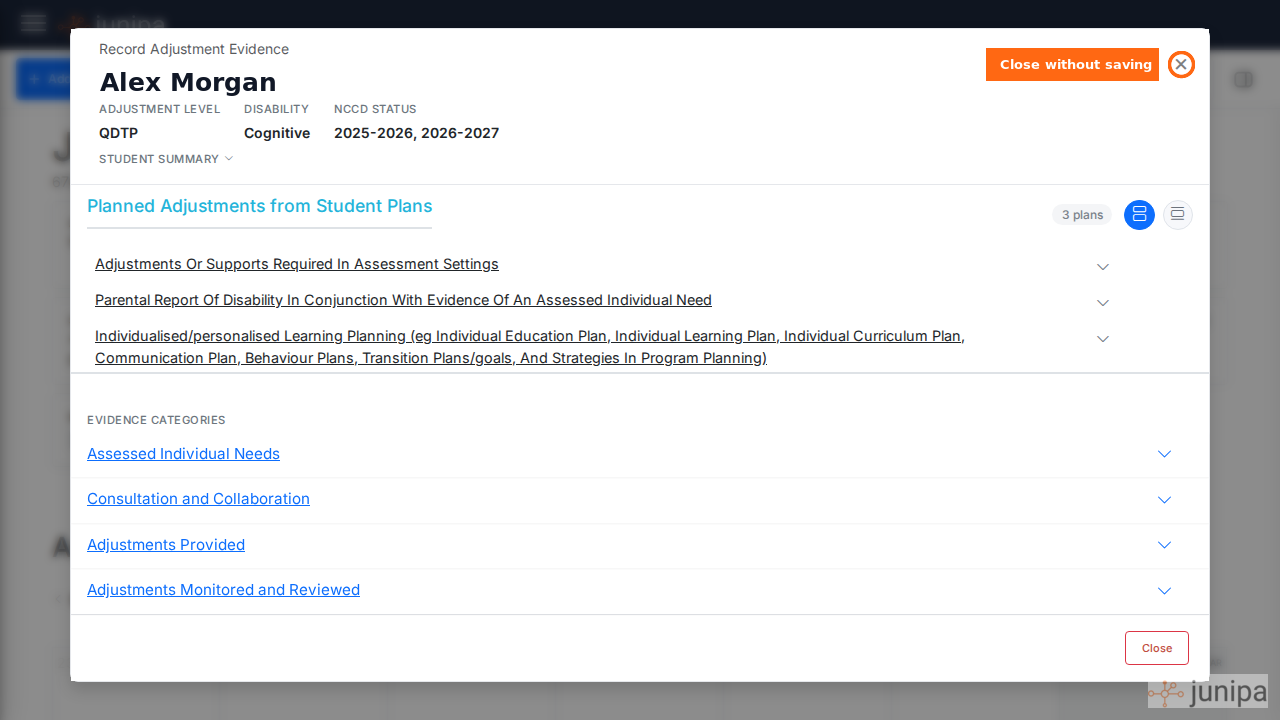
- Select the adjustment category and evidence type.
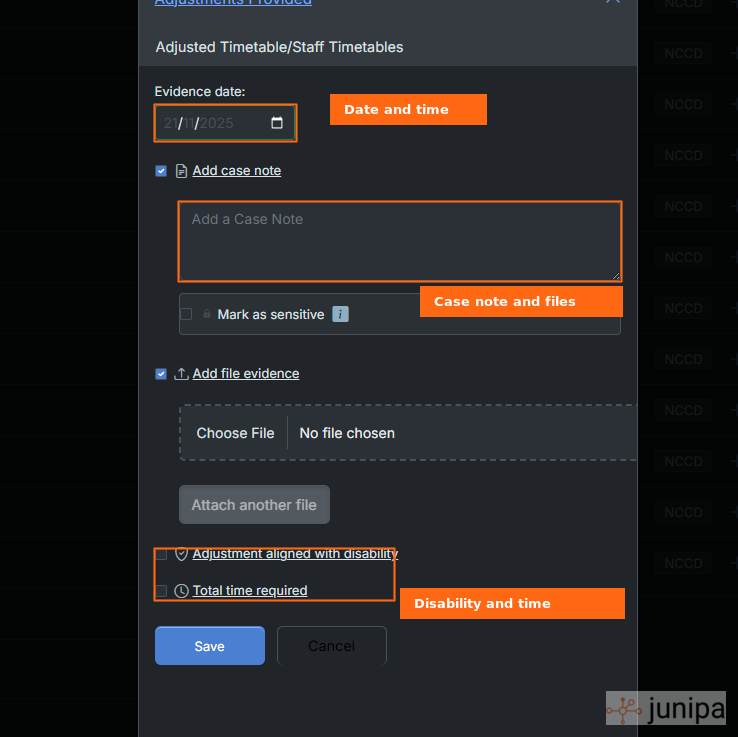
- Add the date, case note and any files or images that help explain the support.
- Check the student name before saving.
- Click Save.
The saved entry appears on the student record and can be picked up by school reports.
If your school has configured school-specific evidence labels, the saved entry may also show an Official NCCD mapping. See school evidence labels for how Junipa keeps the label staff selected alongside the official NCCD category used for reporting.
Record an adjustment during class
Most adjustments happen in a lesson, and the lesson is part of what the record means. An adjustment made in a Year 9 maths class reads differently from the same adjustment made during a wellbeing check. Recording the adjustment while class is running captures that context with it.
When you record an adjustment during class, Junipa suggests the classes running at that time and you select the class the adjustment belongs to. The class is then kept with the record, so a later reader can see where the support happened without asking you.
- Open the student record during the lesson.
- Start the adjustment as you normally would.
- Select the class from the suggested classes running at that time.
- Record the adjustment detail and the case note as usual.
- Save.
If the class you need is not among the suggestions, for example because the support happened during a relief lesson or outside a scheduled period, record the adjustment without a class and describe the setting in the case note instead.
Opening a class entry later
Adjustments recorded against a class can be opened from the class overlay in the student journal, so you can review everything that was recorded in one lesson together rather than picking entries out of a list.
This is useful in a review meeting. When a pattern points at one class, open that class and read what was recorded there, rather than reconstructing the lesson from separate entries.
What each form field means
Use the form fields to explain the adjustment, not just to prove that something happened.
Date and time
The date is when the adjustment or evidence happened. If you are editing later, keep the evidence date as the real classroom, meeting or support date.
Time fields are used when your school wants to record how long the adjustment took. Enter the time spent providing the adjustment, not the time spent filling in Junipa.
Allocated time
Allocated time is the amount of time attached to the adjustment record. Use it when time matters for the support picture, for example regular in-class support, a scheduled intervention, or time spent preparing an adjusted task.
If the time does not help explain the adjustment, keep the entry focused on the case note and files.
Aligns with disability
Adjustment aligned with disability is a teacher accountability check. It confirms that the adjustment being recorded meets the disability-related needs of this student.
Only tick it when the adjustment is connected to the student's disability needs. If the support was general classroom help that any student could receive, write that clearly or leave the alignment unticked.
Case notes
The case note is the short explanation. It should say what changed for the student and why it mattered.
Good notes use classroom language:
- "Provided a vocabulary list and worked example before independent writing."
- "Reduced the assessment to the core questions and allowed extra reading time."
- "Used visual schedule and check-in before transition."
Files and images
Add a file or image when it helps another staff member see the adjustment. Useful files include modified worksheets, work samples, photos of a visual support, meeting notes, a plan, or a specialist document.
For existing entries, use attaching files.
Cancel an entry before saving
If you open the form and realise you are in the wrong student, wrong category or wrong task, click Close or Cancel.
Nothing is saved until you click Save.
See previous entries for a student
Open the student record and use the evidence, activity or records view. Previous entries show the recorded date, adjustment type, detail, files and staff member.
The journal calendar can be switched between month, week and day so you can see when support happened during the school day. See journal calendar views.
A new entry is normally available as soon as it is saved. If you already had the student record open, refresh the record or reopen the student. Reports and exports can take a short moment to reflect the latest saved record.
For school-wide checks, use Evidence Log, Student Activity, or Adjustments with Attachments.
Bulk uploads and batch updates
Junipa supports practical bulk work, but it still protects the quality of the evidence trail.
Current patterns:
- Many adjustments for one student: open the student record and add the separate entries against that student.
- One adjustment for many students: use group adjustments when the same support genuinely applies to every selected student.
- Many adjustments for many students: this is not currently a single many-to-many bulk workflow.
Multiple files can be attached to an evidence record when they belong to that record. Do not use a bulk action to make differentiated adjustments look identical.
If your school needs a different batch approach, Junipa can discuss a workflow that protects compliance, keeps the qualitative detail, and reduces duplicate administration.