Attaching files
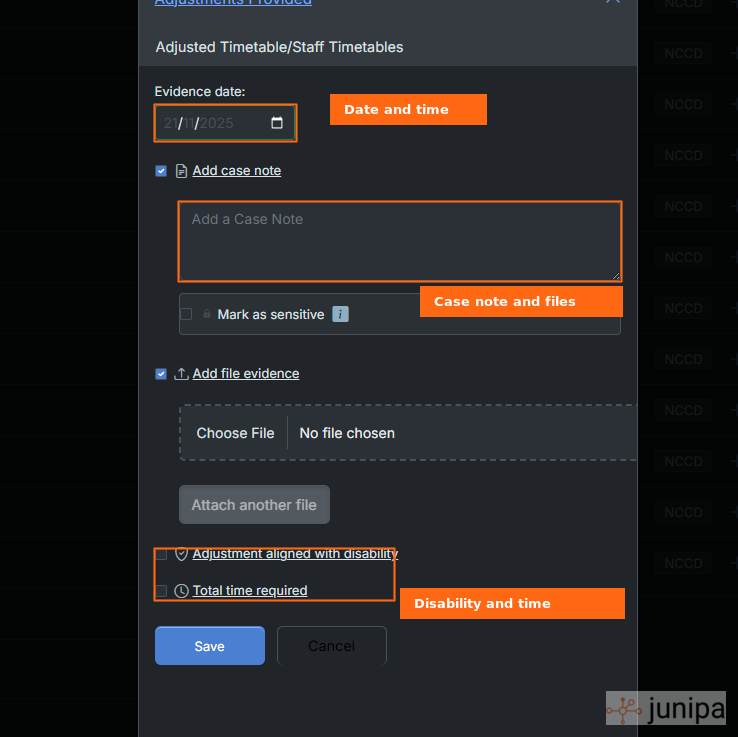
Attach a file when the file helps explain the adjustment. A useful attachment can be a modified task, work sample, plan, meeting note, photo, image or specialist document.
Supported file types
| Category | Supported formats |
|---|---|
| Photos and images | JPG, JPEG, PNG, GIF, HEIC |
| Videos | MP4, MOV, AVI, WebM |
| Documents | PDF, DOC, DOCX, XLS, XLSX, PPT, PPTX |
| Other files | TXT, CSV |
Attach a file while adding evidence
- Open the evidence form.
- Tick or open File evidence if it is not already visible.
- Choose the file or drag it into the upload area.
- Wait for the upload to finish.
- Add another file if the same evidence entry needs more than one attachment.
- Click Save.
Add an image to an existing entry
Use this when the adjustment was recorded correctly, but the proof needs to be stronger.
- Open the student record.
- Open the evidence entry from the evidence log, activity view or record list.
- Click Edit.
- Find Existing files or File evidence.
- Choose the image or file to add.
- Add a reason for editing if Junipa asks for one.
- Click Save.
Remove an image from an existing entry
Remove a file only when it should not be attached to that record, for example the wrong file, duplicate file or a file added during training.
- Open the student record.
- Open the evidence entry.
- Click Edit.
- Find the existing file.
- Use the remove or delete icon beside that file.
- Add a reason for editing if Junipa asks for one.
- Click Save.
note
Removing an attachment removes it from that evidence entry. The change is logged.
View attachments later
Open the evidence entry from the student record. Images normally show as a preview or file link. Documents show by file name and can be opened or downloaded according to your school's permissions.
For a school-wide attachment check, use Adjustments with Attachments.
Attachment habits that help at census
- Attach the file to the student record it belongs to.
- Use a file name a colleague can understand later.
- Avoid attaching personal information that does not explain the adjustment.
- Add a short case note so the file has context.
- Check the Evidence Log after saving if the record was part of a review.