Student groups
Student groups help staff find the right students without rebuilding the same list each time.
Some schools have custom groups behind a feature flag. If you cannot see manual or smart group creation and your school needs it, ask Junipa to activate the feature for your school instance.
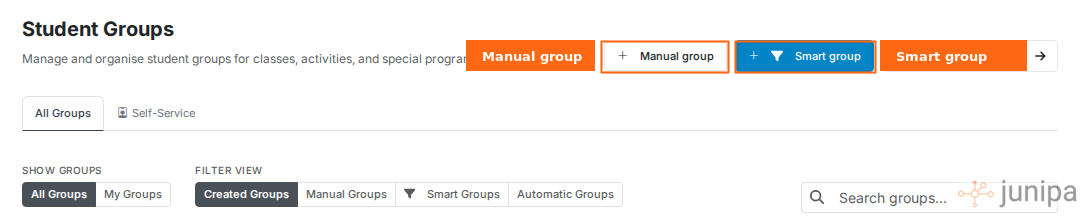
Create your own group
- Open Administration.
- Open Student Groups.
- Choose Manual group or Smart group.
- Name the group clearly.
- Add students manually or define the smart group criteria.
- Preview the students before saving.
- Save the group.
Use a group name that another staff member can understand, for example "Year 8 literacy intervention" or "Term 2 transition support".
Manual groups
Manual groups are useful when a staff member needs to hand-pick students.
Use a manual group for:
- An intervention group.
- A case load.
- Students being reviewed this term.
- A temporary support list.
To update a manual group later, open the group, choose Edit group, add or remove students, then save.
Smart groups
Smart groups update from criteria. They are useful when the list should change as student data changes.
Smart group examples:
- Students in a year level.
- Students with a specific adjustment level.
- Students with a specific disability category.
- Students with evidence recorded in a recent period.
Preview the smart group before saving. If the preview is too broad, tighten the rules.
Automatic groups
Automatic groups come from the school's structure, timetable or imported data. They often include year levels and classes.
Automatic groups cannot usually be edited by hand. They update when school data updates.
Use groups for adjustments
After the group is ready, staff can use group adjustments when the same adjustment genuinely applies to every selected student.
Do not use a group just to make a record faster. The adjustment still needs to be true for each student in the group.
Delete a group
Deleting a group removes the list, not the students.
- Open Administration.
- Open Student Groups.
- Open the group.
- Choose Delete group.
- Confirm only if the group is no longer needed.
Student records, evidence and plans remain in Junipa.