Removing a thousand paper cuts, starting with the plan editor
None of these would make a roadmap. A sign in that forgets where you were going. A text box that hides the sentence you are writing. A back button that wipes the filters you just set.
None is a bug. Each costs about four seconds and a small sigh. Multiply that across a staffroom and a week, and it adds up to real time. Here are the first ones, closed.
Sign in, and arrive where you were heading
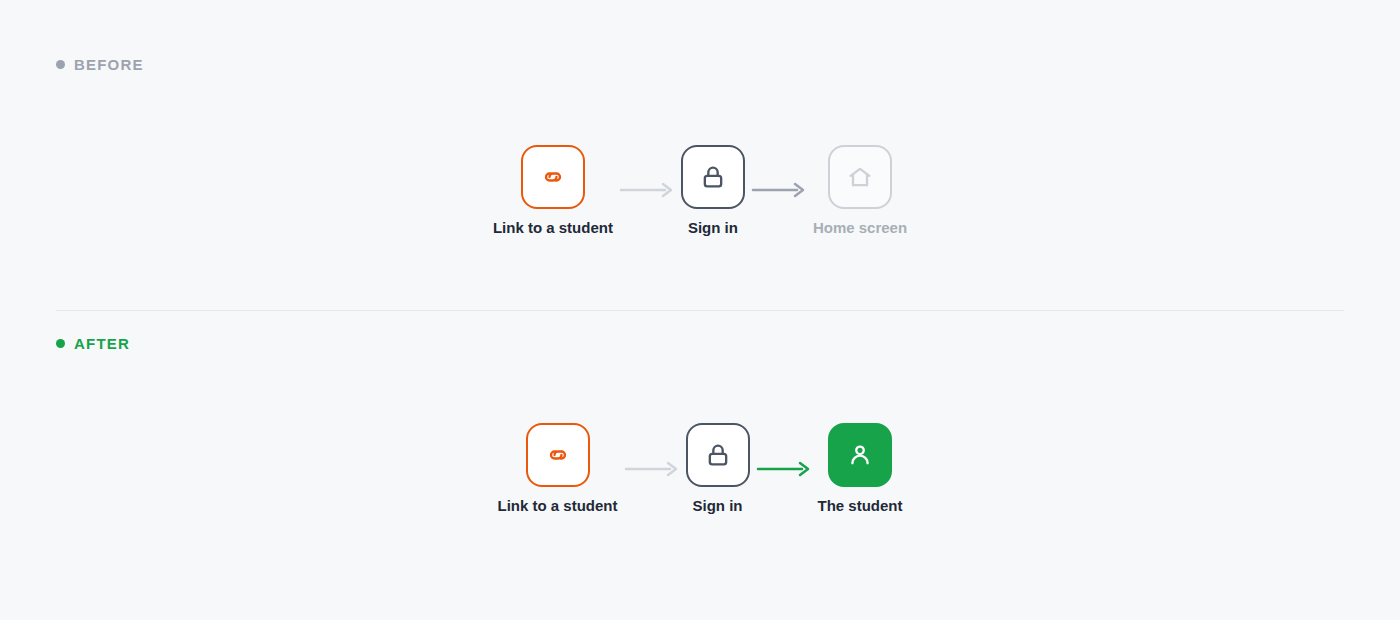
You click a link to a student. Junipa asks you to sign in. You sign in, and land on the home screen. The student you were opening is gone, and you start hunting.
Now Junipa holds your destination through the sign in. Same link, same sign in, and you arrive on the student. The link takes you where it pointed.
Read what you write, without scrolling a box
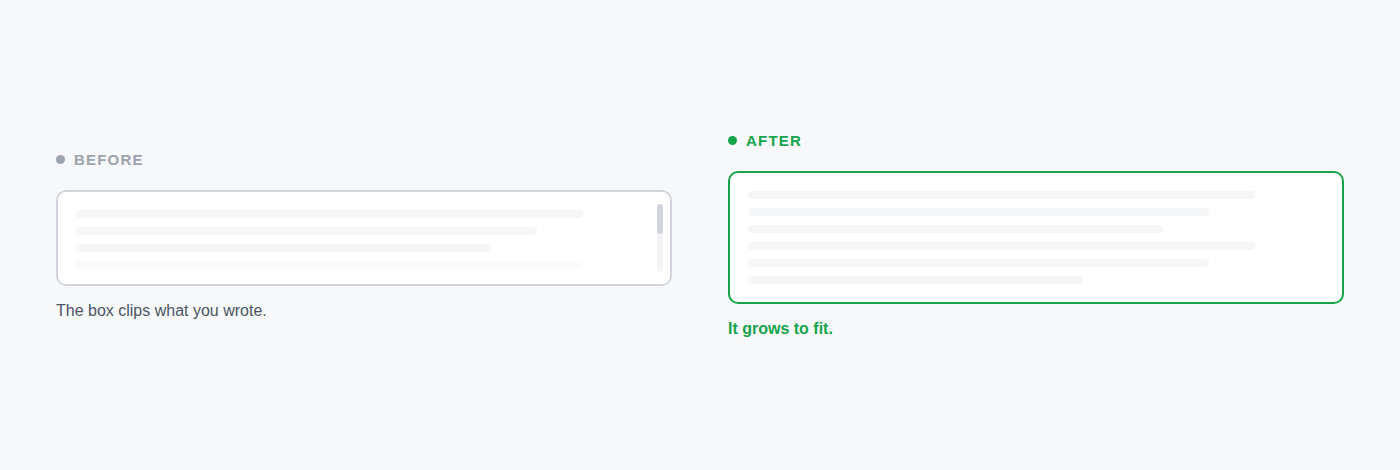
Write a longer adjustment and the old field clipped it behind a scrollbar. You scrolled a small box to reread one paragraph, on a screen with room to spare.
Now Junipa identifies when you are entering more text, and the field expands vertically to fit it. The context of what you are writing is right there on the page, the writing session is recognised, and the interface responds accordingly. The whole adjustment stays on screen, with nothing to scroll. Do not hide something you can show.
Reports remember the year you were in
Junipa works in two years at once. The calendar year, and the reporting year that runs August to August.
Just after census, you go back to review a previous reporting year. You move to another report, and the old screen snapped back to the current year. The data looked empty, because you were now looking at a half finished year instead of the one you were reviewing.
Now the view lives in the page address. Choose a reporting year, and it travels with you. Schools asked us to keep the previous reporting year as the default through review season, and that setting was built on this.
The back button keeps your filters
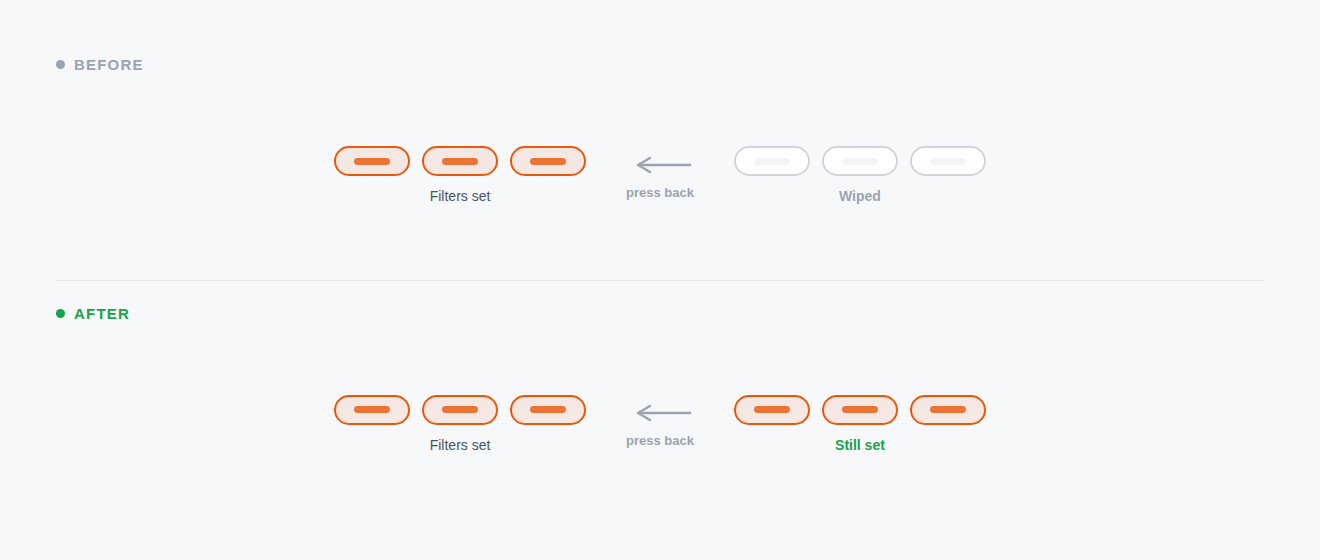
Filter a report by year, grade and adjustment level. Open a student. Press back.
The filters used to reset, and you set them again. Now back returns the same filtered view. One step back in your work, not ten.
A shared link shows what you saw
Share a report and your colleague used to see an unfiltered jumble, because the link carried the report but not the view.
Now the address carries the view, so the link does too. They see your filters, your year, your sort. These stay authenticated links: the recipient signs in, and Junipa shows only what they may see. Bookmark it, or pin a weekly report and jump straight to it, already filtered.
The signing PIN is in the subject line
When Junipa asks a parent or guardian to sign a plan, the email carries a signing link and a security PIN. Tap the link, and the signing page asks for that PIN.
The PIN used to live only inside the email, below the button, past the reason and the logo. So you switched back to your inbox, opened the email, scrolled to find four digits, memorised them, and switched again. On a phone, that is the fiddliest kind of work.
Now the subject line says everything up front: the school, what is needed, and the PIN. The reminder email does the same. You can read the PIN from the inbox list, or from the notification banner, without opening anything.
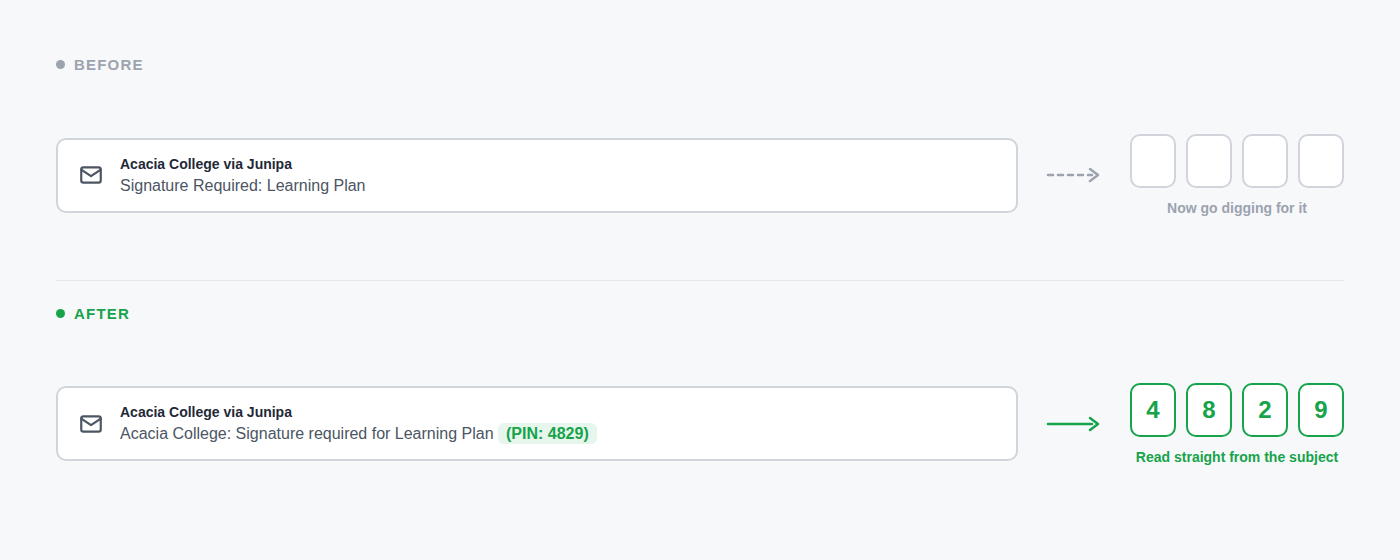
One less thing to hunt for, at the exact moment someone is trying to do the right thing quickly.
While you write, Junipa keeps a copy
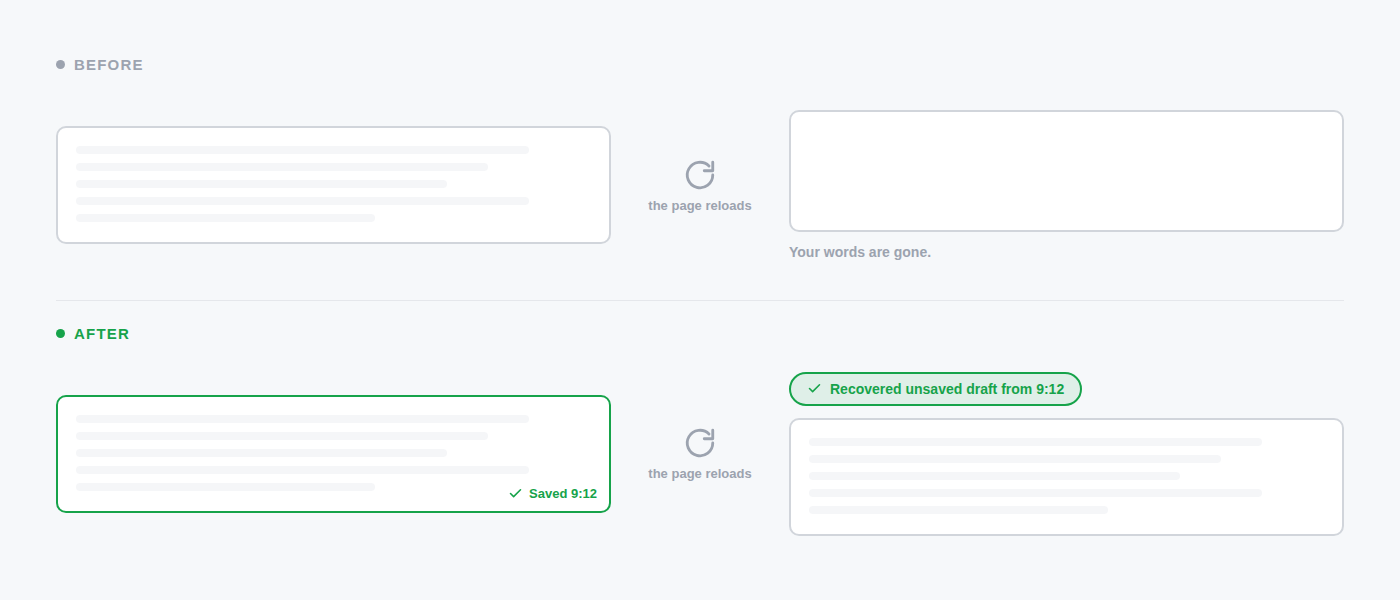
Long writing happens all over Junipa. Case notes, journal entries, plan pages. The worst paper cut of all is a page reload that takes your words with it. A session resumes, an update lands, and the paragraph you were shaping is gone.
So while you write, Junipa now saves a quiet copy of your text every two minutes, and again the moment you leave the page. If the screen reloads before you have saved, your words are restored where they were, with a small note showing the time the copy was kept.
Typing also counts as activity now. A long writing session no longer looks idle to Junipa, so it will not interrupt you in the middle of a sentence.
Why bother with the small stuff
We would rather ship cuts as we close them than save them for one big release.
These frictions are not small for the person in the tool all day. Removing them gives people their attention back, four seconds at a time. There are more on the list. If something in Junipa makes you sigh, tell us. It is probably a paper cut we have not found.