Getting started with Pip
Pip is an assistant inside Junipa. Type or dictate a quick note, the way you would say it to a colleague, and Pip suggests how it could be recorded: adjustment evidence for a class, a log that you contacted families, a case note or a reminder. You stay in charge. Every suggestion is a draft until you approve it.
How Pip is switched on for you
Pip is switched on person by person, and everyone starts with it off.
- Your school's Junipa administrator turns Pip on for you.
- You will see the request in three places, and any of them opens your agreement page:
- an email titled Pip: please review and agree before it is switched on for you
- a task in My Junipa called Pip: please review and agree
- a Pip section in My Account
- Read the agreement and choose I agree. Pip is on for you straight away.
Your agreement page is at /pip-consent/me on your school's Junipa, for example yourschool.junipa.com.au/pip-consent/me.
What you agree to
The agreement explains what Pip is, then lists seven acknowledgements:
- Suggestions only. Pip's suggestions may be wrong or incomplete, and they are not professional advice or a diagnosis.
- I review and approve. Nothing is saved until you approve it, and an approved draft becomes your record, made under your name.
- My obligations stay with me. Pip does not replace your professional judgement or your school's policies, including duty of care and child protection.
- Records and decisions. Decisions made using records you approve are made by you and your school.
- How my information is handled. See Your information below.
- Accountability. As far as the law allows, Junipa is not responsible for loss or harm from relying on a suggestion you have not reviewed, or from a record you approve. Your rights under the Australian Consumer Law and your school's agreement with Junipa are unchanged.
- I can change my mind. You can withdraw at any time from My Account.
Tick each one, or use Select all, then choose I agree. There is no name to type: Junipa records your name and email from your Junipa account, with the date, time and terms version.
If you choose I do not agree, Pip stays off for you and nothing else changes. You can come back and agree later while your school has Pip on for you.
Your first look
After you agree, Junipa opens your dashboard with the message You agreed. Pip is on for you. The Draft a note window opens with a short walkthrough of four things:
- the note box, where you type or dictate
- Dictate, for speaking instead of typing
- Process note, which asks Pip for suggestions
- where the suggestions appear, under your note
To watch it again at any time, open My Account, go to the Pip section and choose Replay walkthrough. You can also open /dashboard?pip=welcome on your school's Junipa.
Process a note
- On your dashboard, choose + Add, then Draft. You can also start a draft from My Junipa. The Draft a note window opens.
- Type your note, or choose Dictate and speak it.
- Choose Process note.
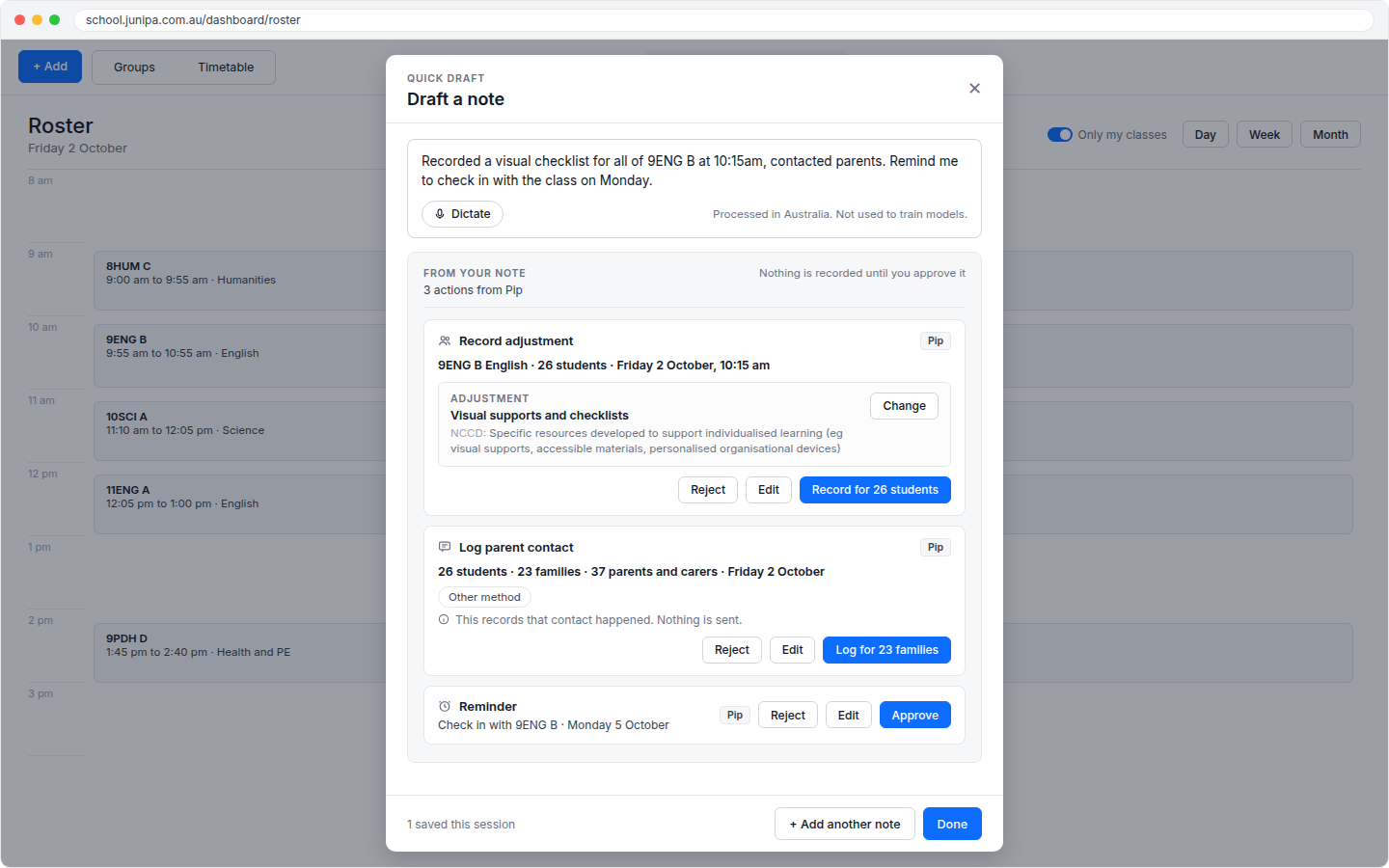
Pip reads the note and lists a few suggestions under What Pip will do. For example, the note Recorded a visual checklist for all of 9ENG B at 10:15am, contacted parents. Remind me to check in with the class on Monday gives three suggestions:
| Suggestion | What it records |
|---|---|
| Record adjustment | Adjustment evidence for every enrolled student in the class, at the time you mentioned. |
| Log parent contact | A record for each student that their families were contacted. |
| Reminder | A reminder for you on the day you mentioned. |
Pip can also suggest a case note for a single student.
Check who each suggestion reaches
Each suggestion shows how many people it touches before you approve it.
- Record adjustment shows the class, the number of students, and the date and time, for example 9ENG B English · 26 students · Friday 2 October, 10:15 am.
- Log parent contact shows the number of students, families, and parents and carers. Logging family contact records that the contact happened. Nothing is sent to families.
Choose the adjustment
The adjustment is named in your school's own wording, with the official NCCD wording beneath it. When Pip is not sure which adjustment you meant, it asks Which adjustment? and offers a short list of likely ones. Pick one, or choose Choose another to search your school's full list and the official NCCD types. You can also choose Change on an adjustment Pip has already picked.
Approve, edit or reject
- Record for 26 students, Log for 23 families or Approve saves the suggestion under your name. The numbers match your note.
- Edit lets you correct the suggestion first.
- Reject discards it.
Nothing is recorded until you approve it. Once you approve a suggestion it becomes your record, so check it is accurate first.
To see the rule based breakdown of your note, sentence by sentence, choose Show the rules view. Junipa also uses the rules view if Pip is unavailable, so you can always finish your note.
Notes you have started but not finished are kept in My Junipa, under My Drafts.
Dictation
The line under the note box names the speech engine and where your audio goes. For example:
- Parakeet: Junipa's speech service for your school (audio stays with your school)
- Moonshine: on this device, where your words are turned into text on your own device
Your school chooses which engine is used.
Your information
- What you type or say is processed within your school's Junipa, in Australia (Sydney).
- Your notes are not used to train AI models.
- Dictated audio is not kept.
- Junipa's operators see usage counts only, never the content of your notes.
Pip supports your professional judgement and your school's policies. If a note suggests a student may be at risk of harm, follow your school's procedures straight away.
Changing your mind
You can withdraw at any time. Open My Account, go to the Pip section and choose Withdraw, or ask your school's Junipa administrator. Pip switches off for you straight away. Records you have already approved stay in Junipa as your school's records.
You can review and agree again later from the same place.
For administrators
Superadmins turn Pip on for each person in Admin, Security, Users, using the switch in the Pip column. Turning it on sends that person the email, the My Junipa task and the My Account prompt.
The Pip column shows where each person is up to:
| Status | Meaning |
|---|---|
| Waiting for consent | The request has been sent. Choose Resend to send a fresh email, for example if the emailed link has expired. |
| Agreed | The person agreed, with the date. Pip is on for them. |
| Declined | The person chose not to use Pip, with the date. |
| Withdrawn | The person withdrew their agreement, with the date. Pip is off for them. |
Turning the switch off ends Pip for that person straight away.
Links
- Your agreement page: your school's Junipa >
/pip-consent/me - My Account: your school's Junipa > My Account (
/dashboard/user/account-settings) - My Junipa: your school's Junipa > My Junipa (
/dashboard/my-junipa) - Replay the walkthrough: your school's Junipa >
/dashboard?pip=welcome - Users and the Pip column (superadmins): your school's Junipa > Admin > Security > Users (
/dashboard/admin/admin-security/users) - Pip on junipa.com.au
- The 2 October 2026 update