How a Continuous Adjustment Profile Starts
A Continuous Adjustment Profile (CAP) proves continuous support for a student wherever they are, on campus or off campus. A student arrives at a CAP because their situation triggers it, not because someone hunts for a setting to turn on.
There are two ways a student qualifies. A student can meet one or both at once.
- The student is extensive. Their adjustment level is Extensive, so they need continuous in-class support. This is the on-campus lens.
- The student is off campus on a regular basis. They have an off-campus schedule for work experience, VET, medical, or study days. This is the off-campus lens.
When either is true, the student has a Continuous Adjustment Profile. The steps that slot into the profile depend on which criteria the student meets.

Either trigger leads to the same Continuous Adjustment Profile. The lens steps that slot in depend on which criteria the student meets.
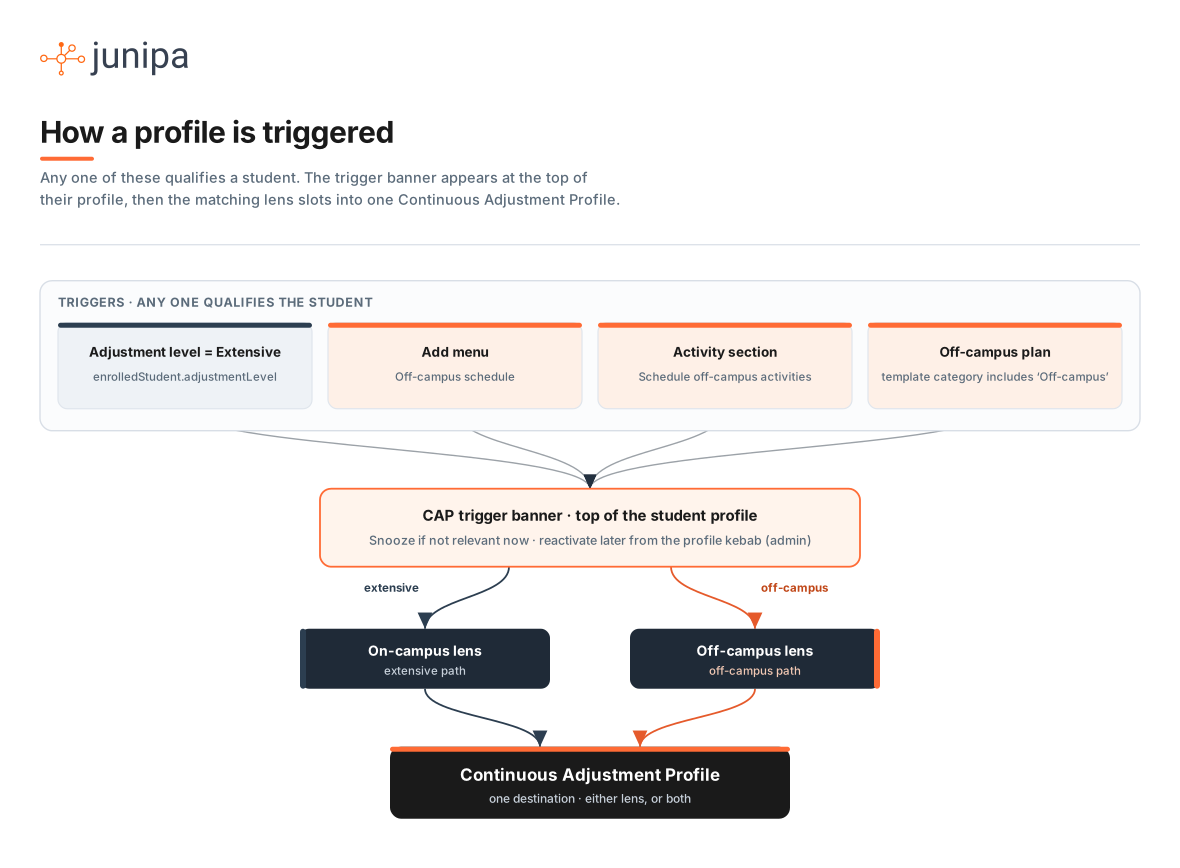
Exactly what fires each path: an Extensive adjustment level on one side, adding an off-campus schedule on the other.
The Triggers
Extensive (on-campus lens)
This is already in place. When a student's adjustment level is set to Extensive, Junipa treats them as needing a continuous adjustment profile and surfaces the on-campus lens. The extensive on-ramp is the adjustment level itself.
Off campus (off-campus lens)
This is the newer path. A student gets the off-campus lens from three places:
- The student's Add menu has an Off-campus schedule option. Choosing it starts the off-campus schedule for that student.
- The Activity section of the student profile has a subtle Schedule off-campus activities button. Choosing it starts the same off-campus schedule.
- Adding a plan of the Off-campus type (any plan whose template is categorised Off-campus) also triggers the off-campus lens.
Once any of these apply, the off-campus lens is part of their Continuous Adjustment Profile.
The trigger prompt
When a student qualifies, a prompt appears at the top of their profile. Staff can snooze it if it does not apply right now, and reactivate it later from the kebab menu on the student profile.
Manual start
Staff can start a Continuous Adjustment Profile for any student even when no automatic trigger applies.
What Each Persona Shows
The profile is the same destination for every student. What changes is the set of components that appear. Off-campus is a parallel set, not a smaller version of extensive. A student can be in either set or both.
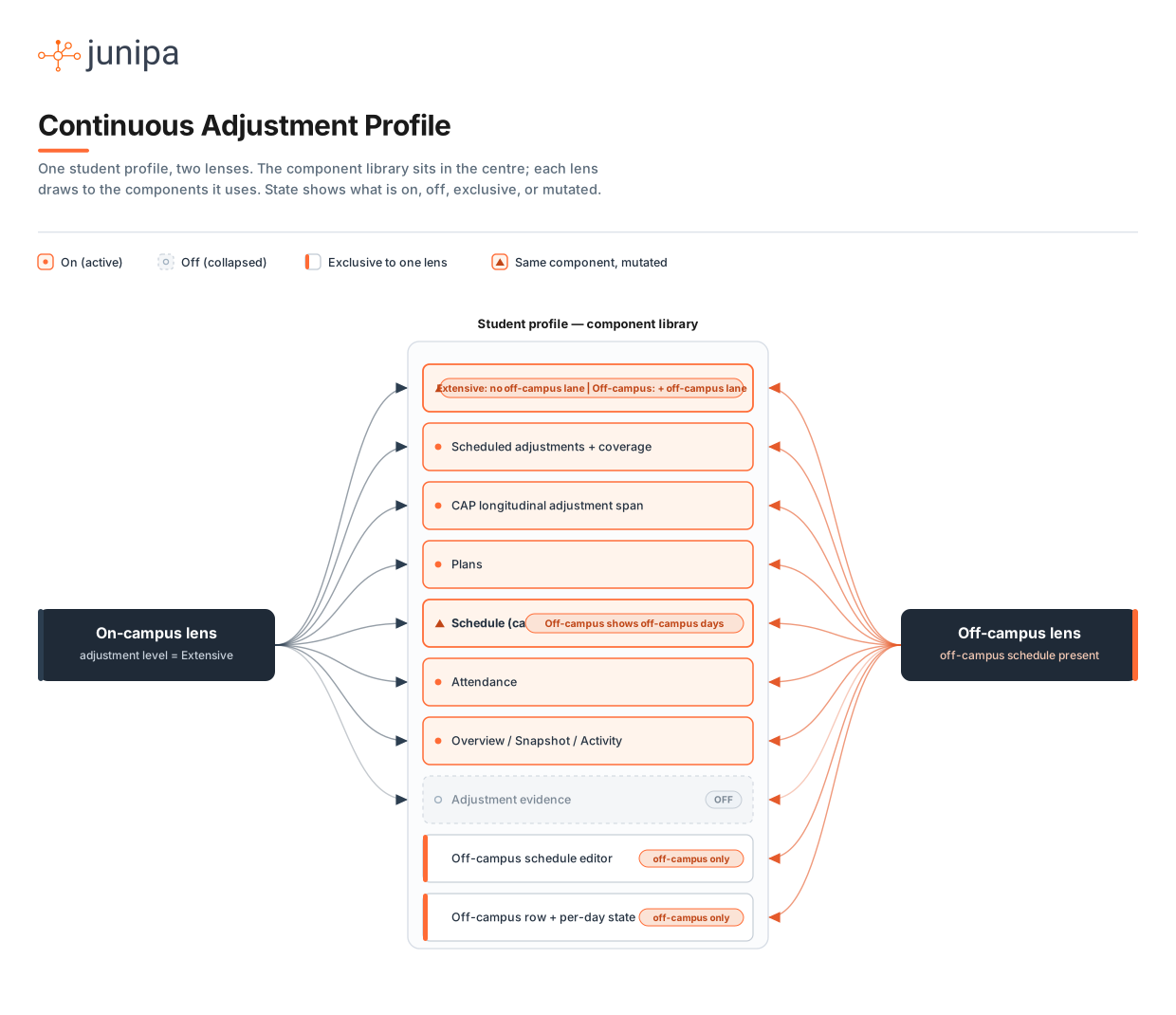
The component library sits in the centre. The on-campus lens (navy, left) and the off-campus lens (orange, right) each draw an edge to the components they use. Each component shows its state: on, off (collapsed by default, such as Adjustment evidence), exclusive to one lens, or the same component mutated. The Delivery profile (the CAP timeline) is the mutation that matters — extensive has every lane except the off-campus lane, off-campus adds the off-campus lane — and the Schedule is mutated too (off-campus shows off-campus days). Scheduled adjustments and coverage, the CAP longitudinal span, Plans and Attendance are on for both.
The same split, shown as two complete profiles side by side, makes it easy to see what is shared, what is exclusive to one lens, and where the same component behaves differently:
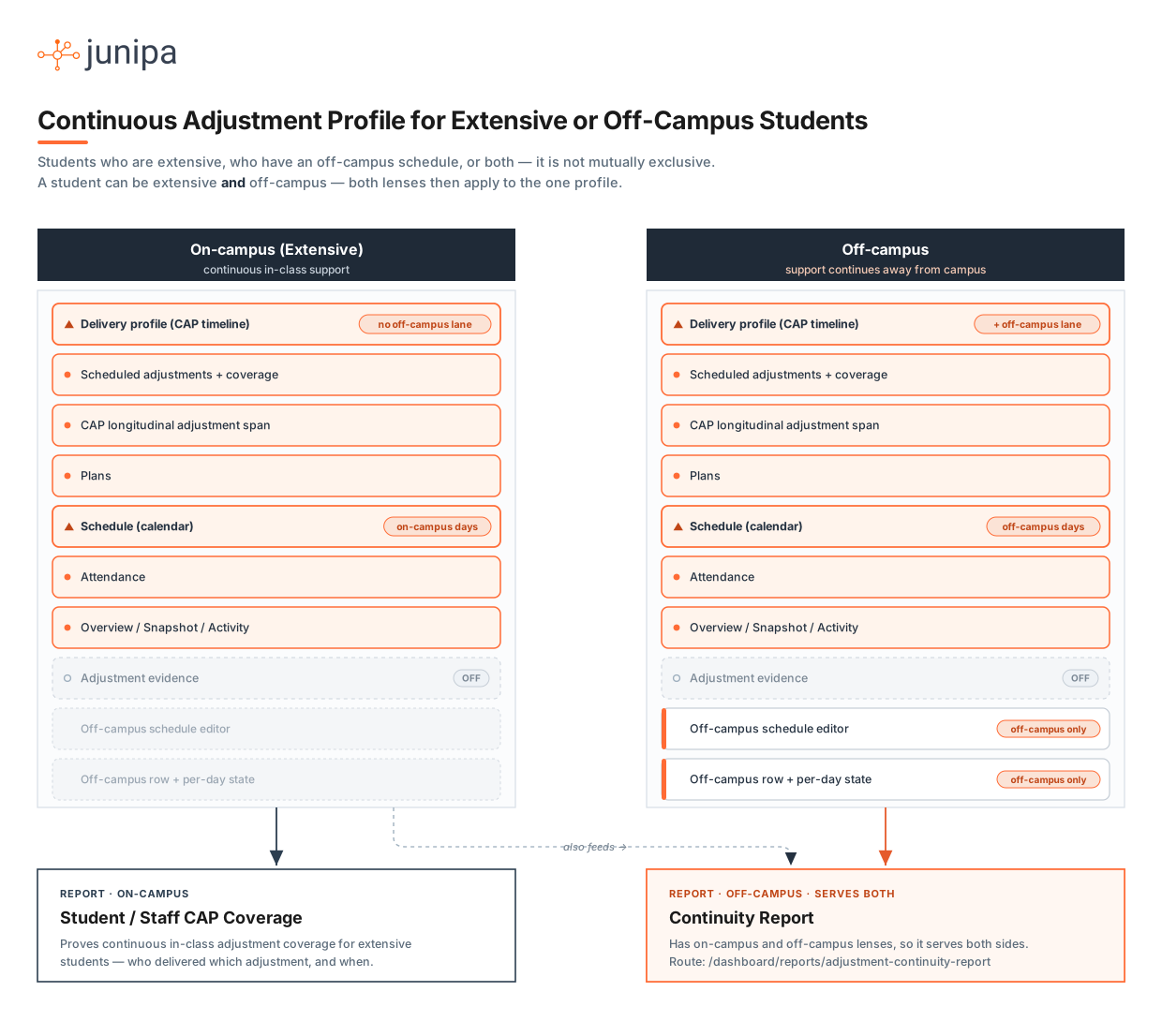
A student can be extensive, have an off-campus schedule, or both — it is not mutually exclusive, and when both apply the two lenses apply to the one profile. Both stacks list the full profile with per-persona state. Shared components (Scheduled adjustments and coverage, the CAP longitudinal span, Plans, Attendance) are on in both; Adjustment evidence is present but off (collapsed) in both. Components exclusive to off-campus are greyed where they do not apply. Where a component is marked with a triangle it is the same component, mutated — the Delivery profile adds an off-campus lane on the off-campus side but not on the extensive side, and the Schedule shows off-campus days on the off-campus side. Each lens leads into a report: the on-campus (extensive) side feeds the Student / Staff CAP Coverage report, and the off-campus side feeds the Continuity Report (/dashboard/reports/adjustment-continuity-report), which has both on-campus and off-campus lenses and so serves both sides.
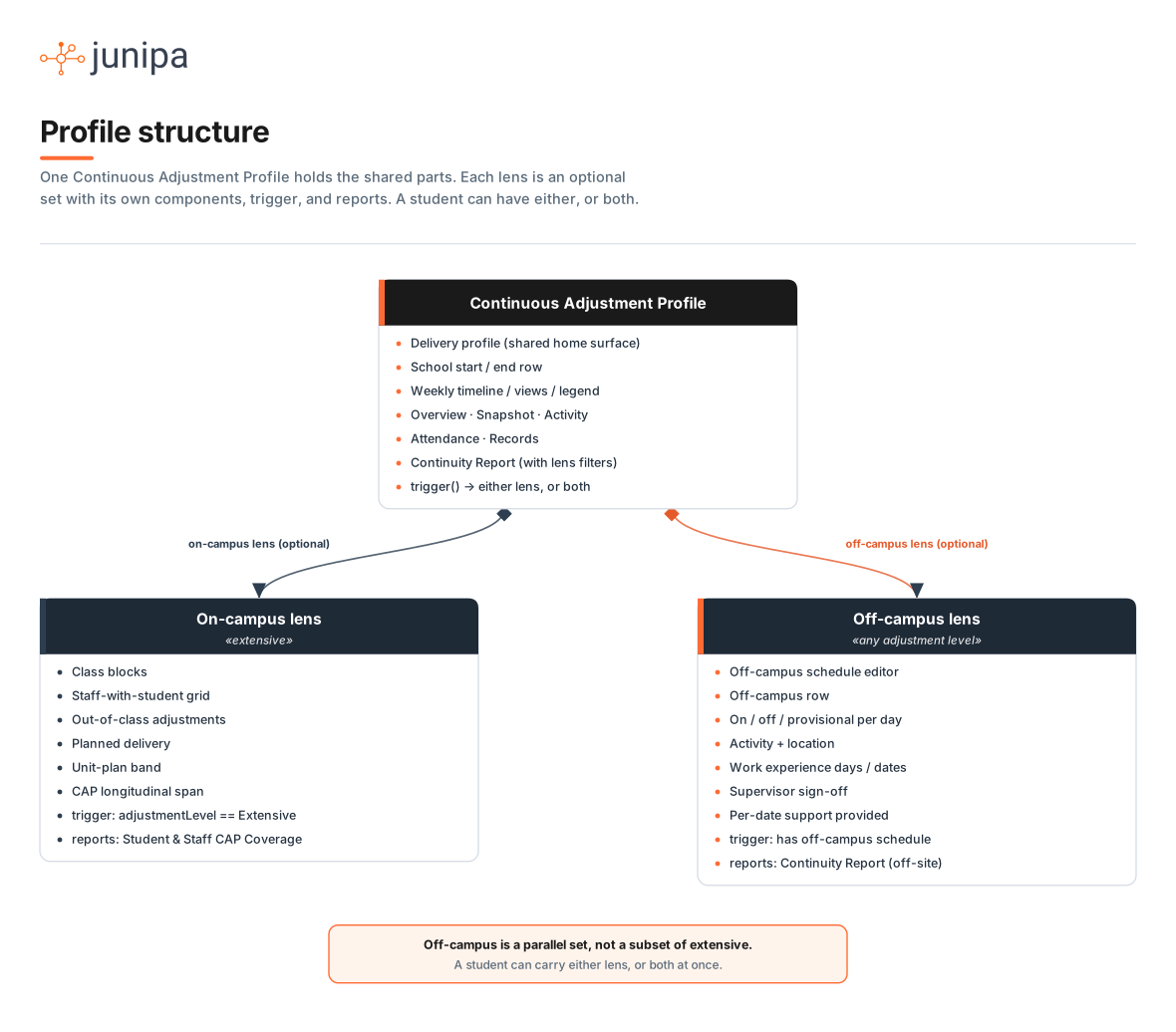
The same split as a component breakdown. The profile holds the shared parts; each lens is an optional set with its own components, triggers, and reports.
Only an extensive (on-campus) student shows: class blocks, the staff-with-student coverage grid, the out-of-class adjustments lane, planned delivery, the unit-plan band, and the CAP longitudinal adjustment span. Reports: Student CAP Coverage and Staff CAP Coverage.
Only an off-campus student shows (any adjustment level): the off-campus schedule editor, the off-campus row on the delivery profile, the per-day on campus / off campus / provisional state, activity and location (including work experience), supervisor sign-off, and the per-date support-provided confirmation. Report: the Continuity Report off-site lens.
Both share: the delivery profile itself (the weekly timeline, school start and end row, view modes, legend) as the home, the standard profile sections (overview, snapshot, activity, attendance, records), and the Continuity Report with its lens filters.
A short guided set of steps walks staff through only the parts that apply, so the profile is set up without showing steps that are not relevant to that student.
Work Experience
Work experience is a common reason a student is off campus, and the schedule and dates of a placement matter for the off-campus lens. When a student has work experience coming up, the off-campus schedule needs the days and dates of that placement so the off-campus lens shows where the student is and that support continues. This is an area we are still building out.
One Profile, Two Lenses
Whichever trigger applies, the student ends up with one Continuous Adjustment Profile. The on-campus lens and the off-campus lens are two views of the same profile, not two separate features. There is one feature for the school to enable, and per student there is no separate switch to flip, because the triggers do the work.