Setting and Reviewing Plan Goals
A useful plan goal tells staff what the student is working towards, how progress will be recognised, who owns the follow-up and when the goal will be reviewed.
Junipa keeps those details together in the student plan. Staff can then use the Plan goals report, My Junipa tasks and the plan itself to find work that needs attention.
What Junipa records for each goal
Each goal can include:
- a specific goal statement;
- a goal type;
- an observable measure of progress;
- one or more staff owners;
- a review date, either the plan review date or an earlier date;
- task, calendar and optional email reminders;
- a qualitative outcome and optional note each time the goal is reviewed.
How goal type supports a meaningful review
The goal efficacy model connects the kind of goal being set with the language staff use to discuss progress.

The diagram shows the broader model. In the plan editor, staff choose a goal type and review the goal using the three qualitative outcomes shown for that type. A school can configure the wording in its plan template.
Find goals across current student plans
Use the Plan goals report when you need to see which goals have owners, when they are due for review and what the latest outcome was.
- Open Plans.
- On the Overview page, select Goal report.
- Review the student, plan, goal, type, owners, review date and latest outcome.
- Select Open to go directly to that goal in the student's plan.
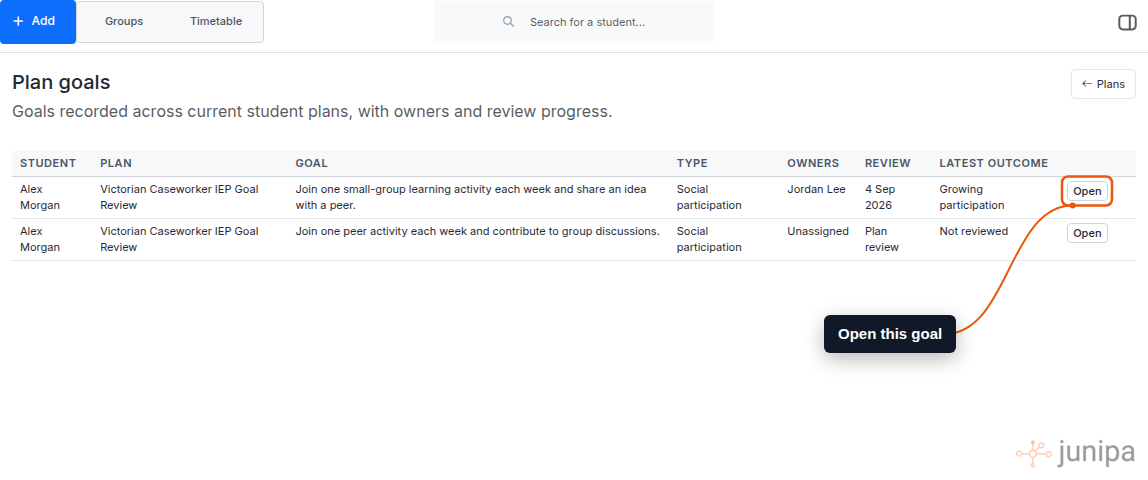
If Goal report is not visible, ask your Junipa administrator to check your school's plan features and your reporting access.
Add a goal to a student plan
For an existing plan:
- Open the student's current plan.
- Select Edit Plan at the top of the plan.
- Find Goals being tracked. The heading can differ between templates.
If the student does not have a plan yet, select Add Plan to Student from Plans, find and select the student, select the template, then select Start Planning. See Creating a plan for a student for the full creation flow.
In the goal section:
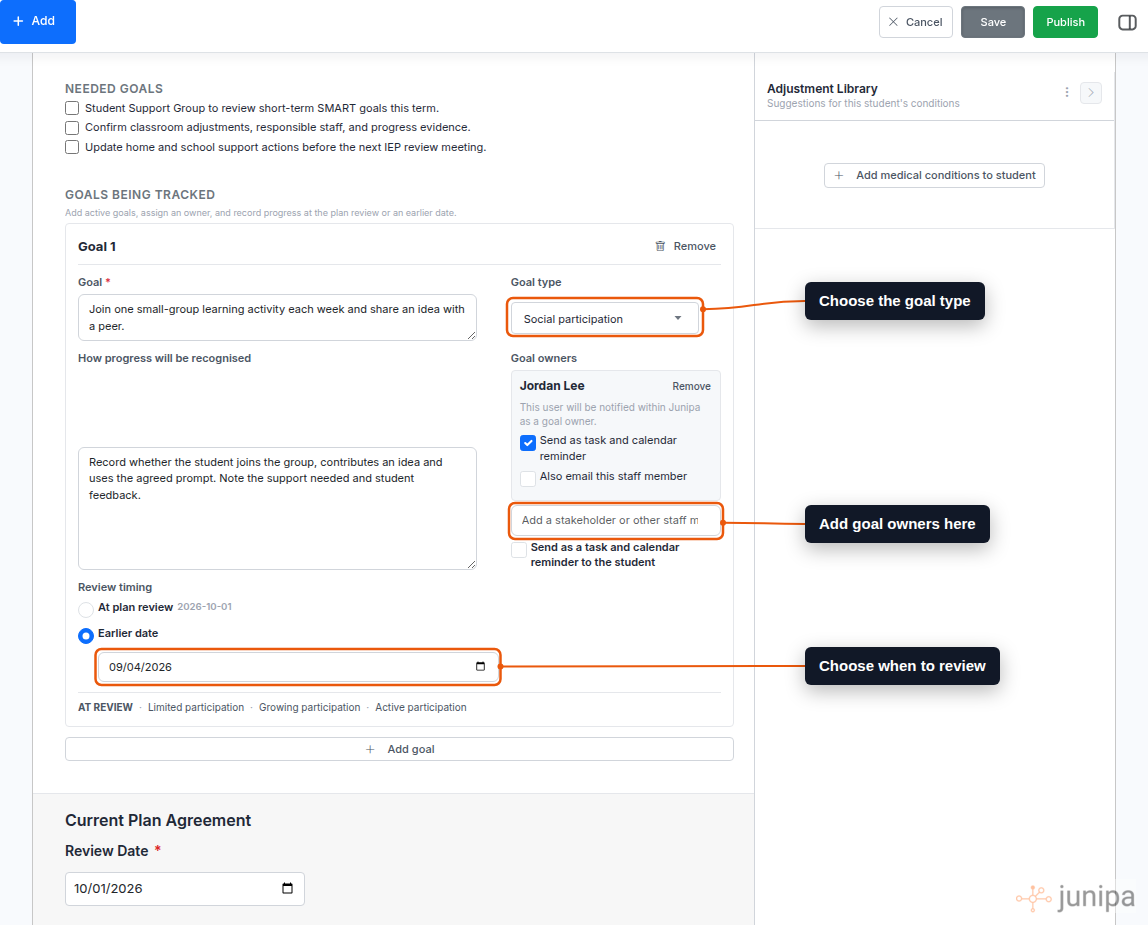
- Use the empty Goal 1 card when the template provides one, or select Add goal.
- Write the goal in specific, student-centred language.
- Choose the Goal type.
- Under How progress will be recognised, record what staff should be able to observe.
- Add one or more Goal owners.
- Choose whether each owner should receive a task and calendar reminder, and whether Junipa should also send an email.
- Choose At plan review or Earlier date for the review timing.
- Select Save at the top of the plan.
After saving, reopen the plan or use the Plan goals report to check the goal as staff will see it.
Write the goal and measure separately
The goal says what the student is working towards. The progress measure says what another staff member should look for.
| Goal | How progress will be recognised |
|---|---|
| Join one peer activity each week and contribute to group discussions. | Weekly participation record and a short student reflection. |
| Begin the morning learning routine independently on four days each week. | Staff record whether the student begins the first task without a prompt. |
Avoid measures such as "doing better" or "more confident" unless you also say what staff will observe.
Goal type suggestions are local and staff controlled
As you write, Junipa may suggest a goal type from the words in the goal. The suggestion uses local matching rules, not AI, and no goal text is sent to an AI service for classification.
You can accept the suggestion or choose a different goal type.
Assign the follow-up without changing plan consent
You can assign more than one staff owner when the work is shared. Each person is notified in Junipa when they are first saved as an owner.
For each owner, you can also select:
- Send as task and calendar reminder to put the review into their My Junipa work;
- Also email this staff member when school policy allows email reminders.
The student reminder is separate. Use it only when the student uses Junipa with a linked student account and should see the review date in their own tasks and calendar.
Adding someone as a goal owner does not make them a consenting plan stakeholder and does not request their signature. Use the plan's signature workflow when acknowledgement or consent is required.
Record a goal review
On the goal review date, a current goal owner can record the outcome from the student plan.
- Open the goal from a My Junipa task, calendar reminder or the Plan goals report.
- Read the goal and How success is measured.
- Choose the qualitative outcome that best matches the evidence available.
- Add a short review note if it will help the next person understand the decision.
- Select Record goal review.
For example, a Social participation goal can use Limited participation, Growing participation and Active participation. Use the labels shown on the goal rather than trying to translate the decision to a number.
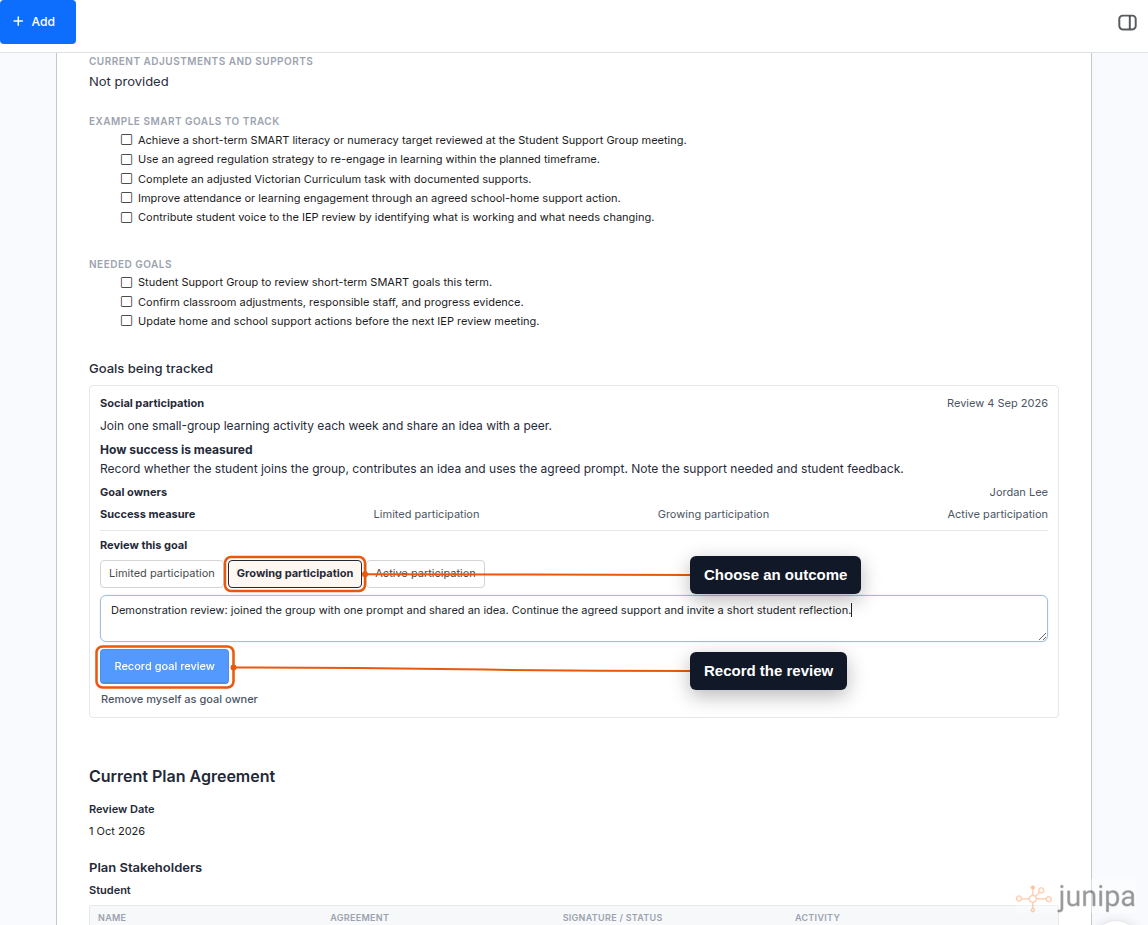
The review is kept with the goal, including the outcome, reviewer and review time. The latest outcome also appears in the Plan goals report. If the owner received a Junipa goal-review task, recording the review completes that task.
The review controls appear when the goal is due. Before then, the plan shows when the review will become available.
Keep goal review connected to evidence
A goal outcome records the review decision. It does not replace the evidence that supports that decision.
Before recording an outcome, check the student's recent adjustments, work samples, observations and other relevant evidence. If the trail is thin, use Adding evidence before completing the review.
For guidance on writing measurable goals and setting a school review rhythm, see Student plans.